
You may occasionally notice that Fitbit data is missing or not syncing correctly in the MyDataHelps app. This guide provides solutions to the most common connection issues, such as no data appearing, reconnecting your Fitbit, or selecting the wrong device or account.
This guide is specific to Fitbit connection issues within the MyDataHelps app. For issues related to the Fitbit app or Fitbit device itself (e.g., app crashes, battery issues, device not turning on), please refer to the Fitbit Help Center.
I don’t see any Fitbit data in MyDataHelps
Either you may not see any Fitbit data in your MyDataHelps app, or your study coordinator may have told you that no Fitbit data is coming through. There may be a few reasons why this is happening. Please check the following before trying any troubleshooting steps below.
What to check:
- Make sure you’ve connected your Fitbit to MyDataHelps.
- Confirm you are logged into the correct MyDataHelps account (email- vs. phone-based account).
- Make sure you are wearing your device and that it’s syncing to the Fitbit app on your phone.
- Open the Fitbit app regularly to trigger a data sync from the device.
- Note that syncing is not always immediate or real-time. Fitbit sends data to MyDataHelps periodically, so it may take some time for your data to appear.
What to do:
- Open the Fitbit app on your phone to manually sync your device.
- In MyDataHelps, tap the ☰ menu > Account > Providers / Health Plans / Devices.
- If it says “Connected” or “Last updated” recently, the connection is active.
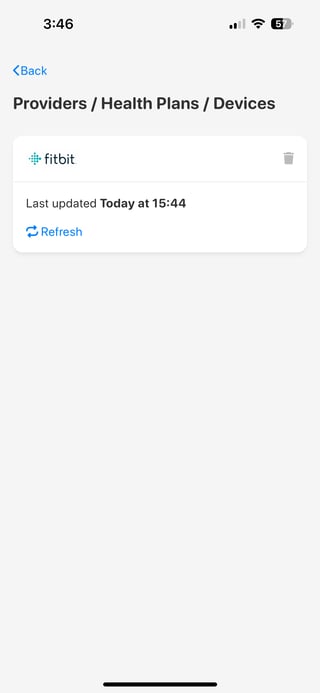
- If you don’t see the Providers / Health Plans / Devices menu option, don’t see Fitbit listed on the page, or see an error like “Authorization expired” under Fitbit, please follow the steps in the Reconnect Fitbit section.
- If it says “Connected” or “Last updated” recently, the connection is active.
My Fitbit isn’t syncing or it says it needs to be reconnected
This may happen if:
- The Fitbit connection has expired its access.
- The wrong Fitbit account was connected.
- The device isn’t syncing with the Fitbit app.
If you are prompted to reconnect:
- Open MyDataHelps.
- Tap the ☰ menu > Account > Providers / Health Plans / Devices.
- Tap “Reconnect”.
- Log in to the same Fitbit account you use in the Fitbit app.
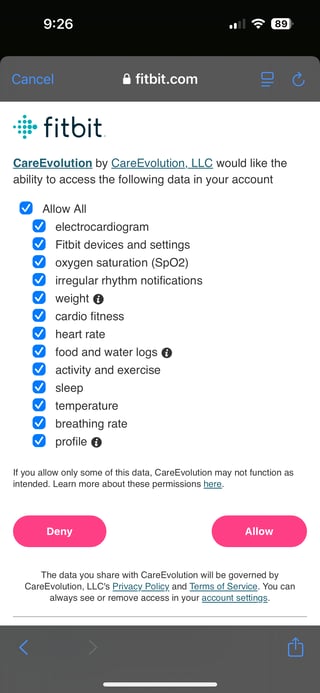
- On the data sharing screen, tap Allow All or select the data you want to share.
If you want to manually remove and reconnect your Fitbit:
- Open MyDataHelps.
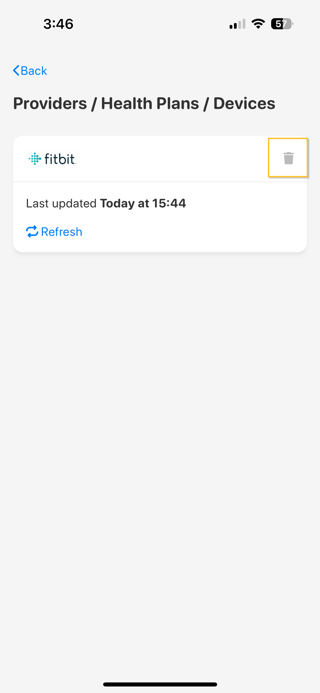
- Tap the ☰ menu > Account > Providers / Health Plans / Devices.
- Tap the trash icon to remove the Fitbit connection.
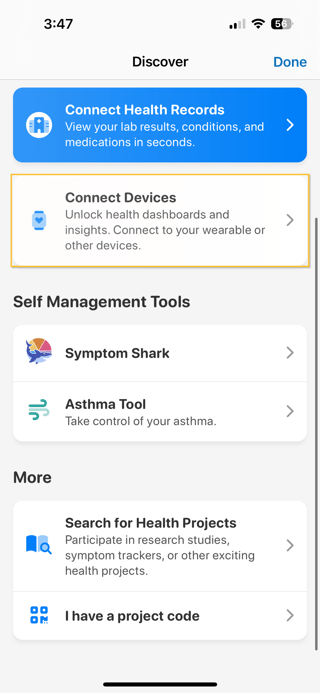
- Go to the MyDataHelps Discover page by tapping the ☰ menu > “Discover” under MyDataHelps.
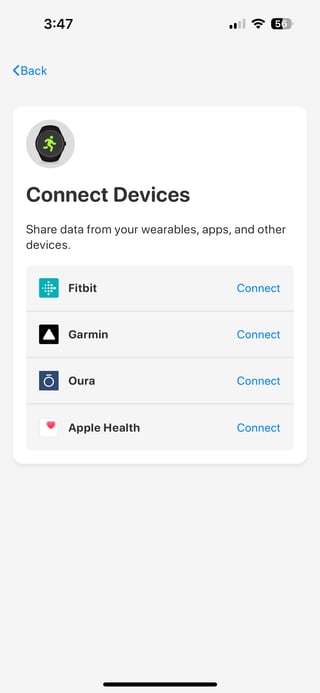
- Tap “Connect Devices”.
- Tap “Connect” next to Fitbit.
- Log into the same Fitbit account you use in the Fitbit app.
- On the data sharing screen, tap Allow All or select the data you want to share.
I connected my Fitbit, but it’s showing data from a different device
This can happen if your Fitbit account is paired with a different device.
How to check which device is set up on Fitbit:
- Open the Fitbit app.
- Tap your profile icon > Tap your current device.
- Check which device (e.g., Sense 2, Charge 6, Inspire 3) is connected to the Fitbit account.
- If an older device is showing, tap the gear icon and remove it from your account.
If you’d like to connect a different Fitbit device (within the same Fitbit account), you can do so by opening the Fitbit app and pairing the new device there. Once the new device is connected to your Fitbit account, MyDataHelps will automatically begin syncing data from it.
If you need to connect a different Fitbit account instead, please follow the steps to remove your current Fitbit connection and reconnect using the correct account.
I’m not sure which Fitbit account I used to connect on MyDataHelps
This can happen if:
- You're logged into the wrong Fitbit account in MyDataHelps.
- You connected a different Fitbit account than the one your device is actually using.
Fitbit now requires all new accounts to be created using a Google login. If you previously had a Fitbit account before this change, you may still have a login with Fitbit directly (i.e., using an email + password).
When connecting your Fitbit account to MyDataHelps, you will be given two login options:
- “Log in with Fitbit” – use this if you created your account before Google acquired Fitbit.
- “Continue with Google” – use this if you created your Fitbit account more recently, or are logging in with a Gmail account.
If you're unsure which account you're using:
- Open the Fitbit app on your phone.
- Tap your profile icon in the top right corner.
- Look for the email address or Google account listed under your profile.
- This is the account you should use when connecting Fitbit in MyDataHelps.
If you connected the wrong account in MyDataHelps:
-
Please follow the steps to manually remove and reconnect your Fitbit.
- If you are still not seeing data after reconnecting, please make sure your Fitbit device is syncing with the Fitbit app by opening the Fitbit app while wearing the device.
I need to adjust which Fitbit data is shared with MyDataHelps
When you first connect your Fitbit account to MyDataHelps, you’re asked to allow access to specific types of data such as:
- Sleep
- Activity and Exercise
- Heart Rate
- Fitbit Devices and Settings
Some studies may require specific data types to be shared. If your study team lets you know that certain data is missing or needs to be added, you'll need to revoke your current Fitbit connection and reconnect with the correct data-sharing permissions.
If you're using the Fitbit app:
- Open the Fitbit app on your phone.
- Tap your profile icon (top right corner).
- Select “Your data in Fitbit”.
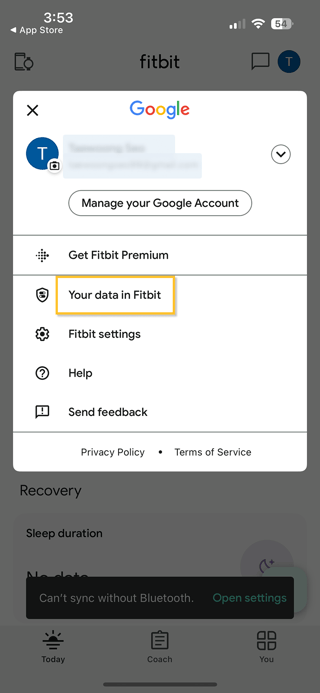
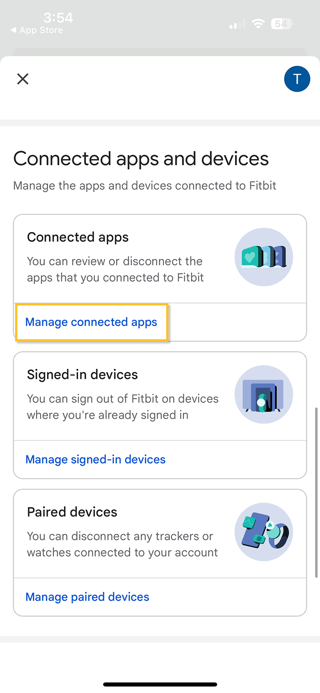
- Select "Connected apps and devices" > “Manage connected apps”.
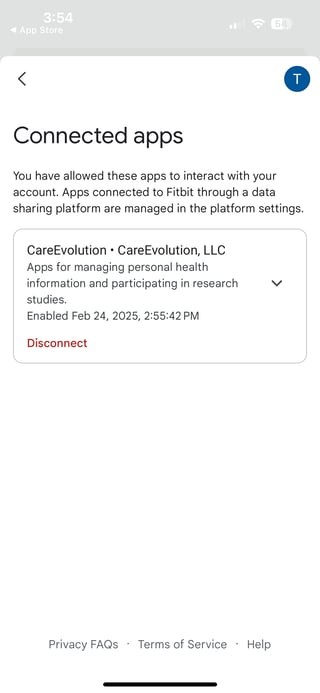
- Look for CareEvolution in the list of connected apps and tap it.
- Tap “Disconnect” or “Revoke access” then “Confirm and disconnect”.
- Open the MyDataHelps app and go to the menu (☰) in the top-right corner.
- Tap Account > Providers / Health Plans / Devices.
- Tap “Reconnect”.
- Follow the prompts to log in to your Fitbit account again.
- When prompted, make sure to click "Allow All" or select the data you want to share.
If you're using Fitbit.com:
- Go to fitbit.com and log in.
- Click your watch icon (settings) in the top-right corner.
- Choose Applications from the left-hand menu.
- Find CareEvolution in the list and click Revoke Access.
- Open the MyDataHelps app and follow the steps to reconnect your Fitbit account with the correct data access.